Table of Contents
Your customer doesn't care whether a person or an agent answered their question. They care whether it got answered, and whether they had to repeat themselves when it didn't.
That's the standard to hold the HubSpot Customer Agent to. It answers customer questions on chat, email and messaging channels using the content you give it, like knowledge base articles, website pages, files and short answers you write. It can take configured actions, like booking a meeting. When it can't help, it hands the conversation to your team. It needs a Professional or Enterprise plan, and it only uses HubSpot Credits when it delivers a resolution.
The content and the handoff decide whether customers like it. Get both right before you switch it on.
What Is the HubSpot Customer Agent?
HubSpot's AI page describes the Customer Agent as resolving inquiries automatically across channels. HubSpot's Customer Agent documentation fills in the detail:
- It answers questions using content you've synced to it
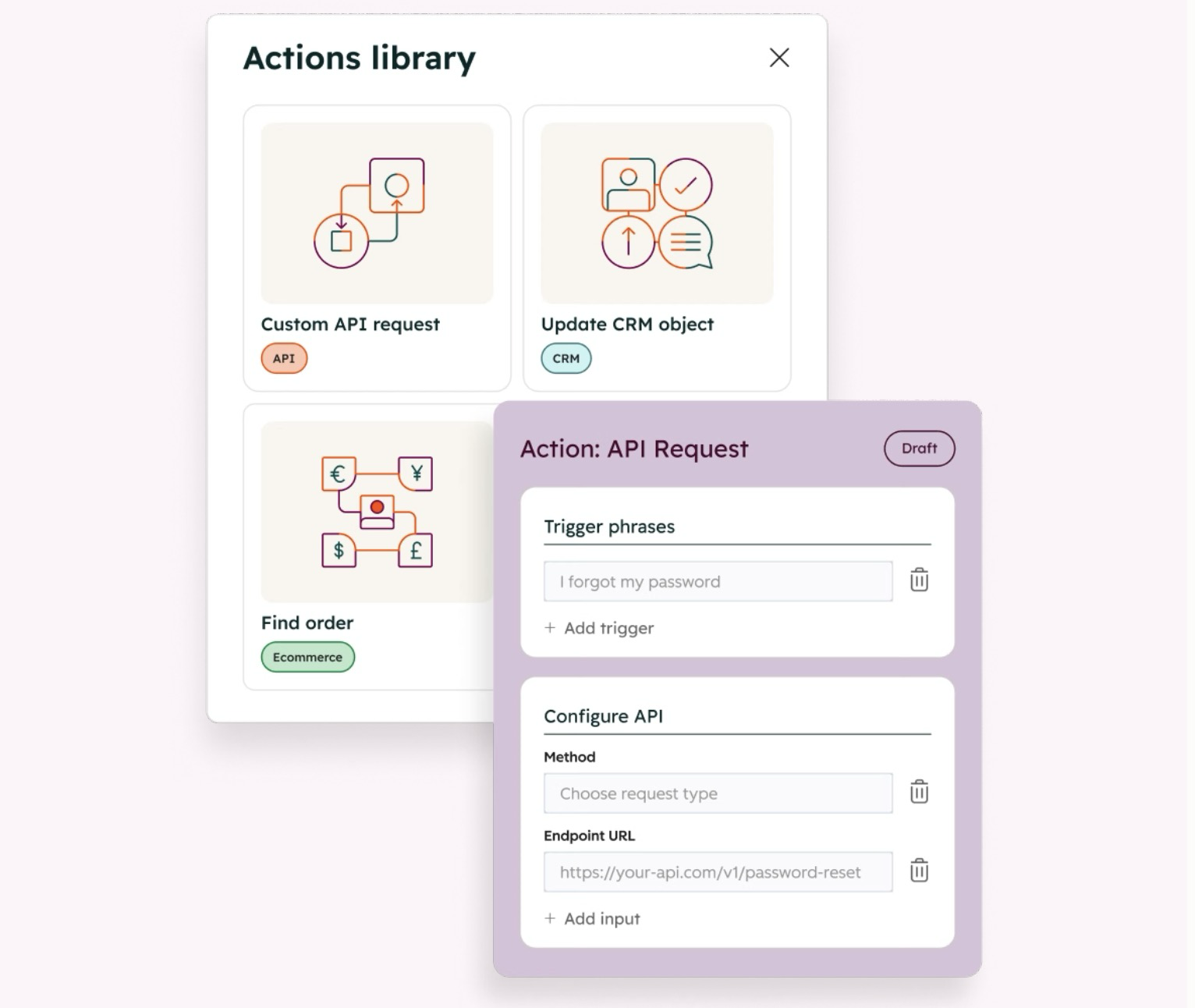
- It performs actions you've configured, like resetting a password or booking a meeting
- It can also give your reps reply recommendations without answering customers directly
- It works on live channels including chat and email, and setup requires at least one Facebook, WhatsApp or live chat channel
It's available on Professional or Enterprise tiers of Marketing, Sales, Service, Data, Content Hub, Smart CRM and Revenue Hub.
What the Customer Agent Answers From
The agent can only be as good as its sources. HubSpot's content sources documentation lists what you can give it:
- HubSpot content: knowledge base articles, website pages, landing pages and blog posts
- Public URLs: outside pages you import, optionally with related pages on the same domain
- Uploaded files: .docx, .pdf, .csv, .txt and .html
- Short answers: question-and-answer pairs you write yourself
- Generated knowledge: Q&A pairs HubSpot's AI creates from resolved tickets, inbox conversations or files, which you review before they're used
One line in that documentation deserves a bold underline: any content you add, private or public, can be used by the agent to draft responses. If you upload an internal pricing sheet to help it answer questions, assume a customer could see what's in it.
Here's the problem most teams run into. The knowledge base was written years ago, parts of it are out of date, and nobody owns it. The Customer Agent will answer from it anyway, politely and confidently. Fix the content first. It's not glamorous work, and it's the work that decides whether this goes well.
How to Set Up the HubSpot Customer Agent
- Confirm the plan. Professional or Enterprise, plus HubSpot Credits. HubSpot offers 14 days of free access during initial setup, per its documentation, which is a good window to test.
- Connect a channel. You'll need at least one Facebook, WhatsApp or live chat channel.
- Add your content. Start with the knowledge base articles you trust most, plus short answers for the questions your team gets every day.
- Configure actions. Only the ones you'd let a new hire do without asking, like booking a meeting.
- Set up the handoff. More on this below, because it matters most.
- Test with your own team. Have your support reps throw the hardest real questions at it before a customer does.
The Handoff Is the Product
Here's the part the hot takes get wrong. The usual way to judge a support agent is how many conversations it closes without a person. That's the wrong scoreboard.
Customers forgive "let me get someone who can help." They don't forgive an agent that keeps answering the wrong question, or a handoff that drops them in a queue where nobody shows up. Judge the Customer Agent by how it hands off, not just by how often it doesn't.
HubSpot gives you real control here, per its handoff documentation:
- When it hands off. By default, when it can't answer, when the visitor asks for a person, or when the agent is paused. You can add your own handoff guidelines, like specific words or topics such as cancellations or refunds.
- How it hands off. Live handoff to the next available person, async handoff for someone to follow up later, or no handoff.
- Where it goes. To specific users or teams, or through workflows based on conditions. Help desk channels create a ticket, inbox channels route the conversation. Only users with a Sales or Service seat can receive routed conversations.
- What the customer sees. Separate messages for when your team is available, unavailable, or when a ticket ends up unassigned. HubSpot translates handoff messages into the visitor's language automatically.
One setting to watch: HubSpot notes that a "team only" routing option ignores user availability, so a handoff can happen when nobody is around. It suggests routing to specific users and teams instead.
For anything about money, cancellations or an angry customer, write a handoff guideline. Those conversations are worth a person every time.
What the Customer Agent Costs
The pricing model works in your favor. HubSpot's documentation says credits are consumed only when the agent delivers a resolution, and multiple messages in one open conversation don't automatically use extra credits.
Reply recommendations, where the agent suggests a reply and a rep sends it, don't use credits at all. That makes them a smart way to start. Your team sees what the agent would say on real conversations, and you pay nothing until you let it answer customers directly.
How to Know It's Working
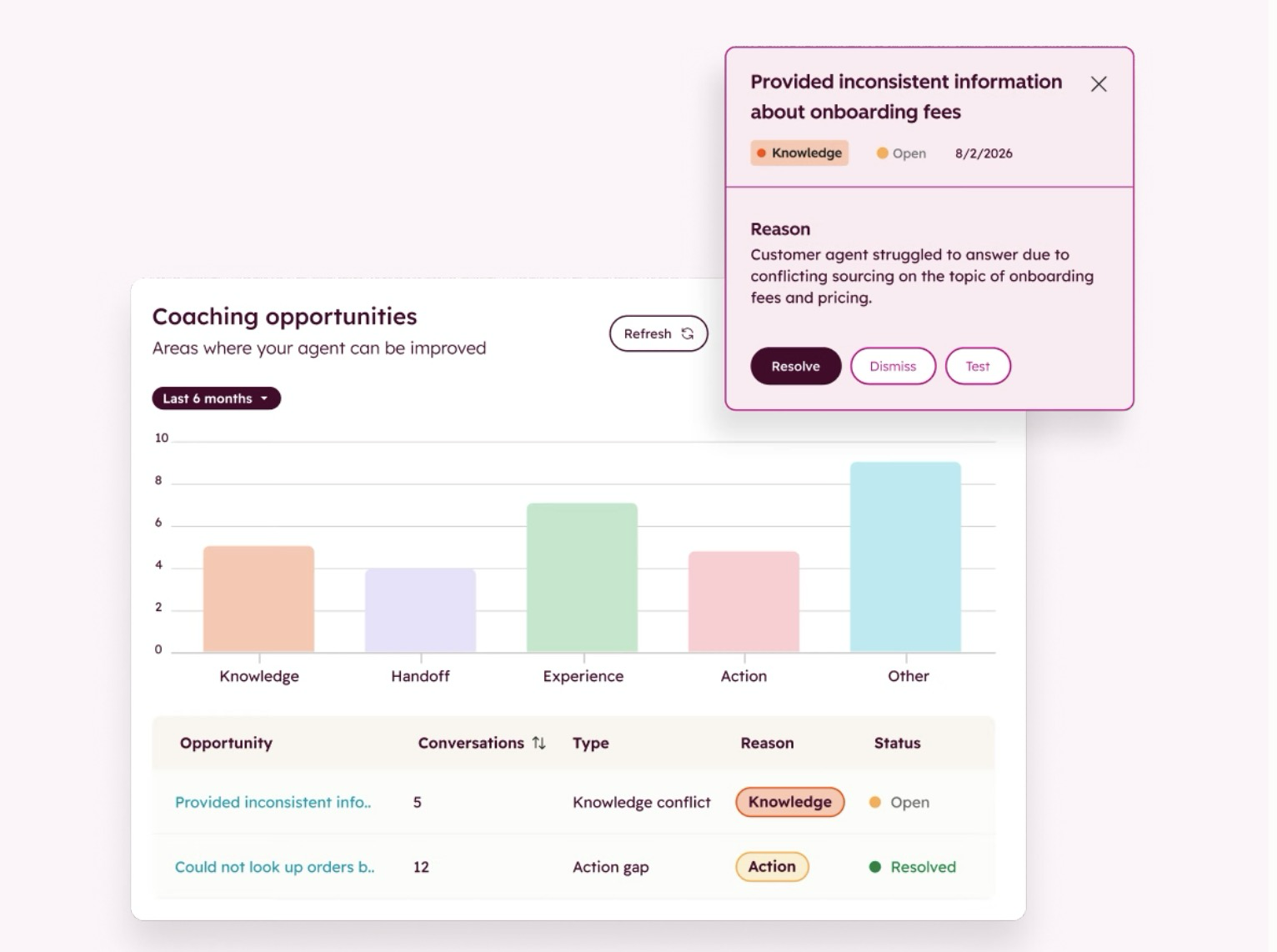
Read the conversations. Every day for the first couple of weeks, have someone read a sample of what the agent said and where it handed off.
Watch the Customer Agent ticket status property too. HubSpot uses it to show whether a ticket is pending with the agent, awaiting human assignment or handed off. A growing pile of "Awaiting Human Assignment" means your routing has a gap, and your customers are the ones waiting in it.
What to Do First
Pull the 20 questions your support team answered most last month and check whether your knowledge base answers each one clearly. Wherever it doesn't, write a short answer. That list is your Customer Agent's first week of content, and it's worth doing whether you turn the agent on or not.
The Customer Agent is one part of Agent Hub. Here's the full breakdown of HubSpot Agent Hub, and if you want help getting the content and handoff right, see how we set up HubSpot Agent Hub.
Let the agent answer what's written down. Make sure a person answers everything else, fast.
FAQs