Table of Contents
- 1.Before You Build: Permissions and Plan
- 2.Step 1: Write the Instructions
- 3.Step 2: Give It Knowledge
- 4.Step 3: Choose the Actions
- 5.Step 4: Define the Inputs
- 6.Step 5: Pick the Trigger
- 7.Step 6: Test It Without Spending Credits
- 8.Step 7: Set Limits and Publish
- 9.What Not to Build
- 10.What to Do First
- 11.FAQs
Build a custom HubSpot agent in seven decisions, test it without spending credits, and cap it before it goes live.
A custom agent is a job description with tools attached. Write the job description badly and no tool fixes it.
HubSpot Agent Builder is where you create that job description. You give the agent instructions, knowledge, actions and inputs, choose what triggers it, test it for free, set a monthly run limit and publish. HubSpot's AI page says no coding is required, and that's true. The hard part isn't the code. It's being specific about the job.
Every step below comes from HubSpot's Agent Builder documentation unless noted.
Before You Build: Permissions and Plan
Agent Builder is available in Starter, Professional and Enterprise for Marketing, Sales, Service, Data and Content Hub. Smart CRM and Revenue Hub need Professional or Enterprise.
To create or edit agents you need the Super Admin role or the Agent Builder permission. A Super Admin also has to turn on several AI settings first, including giving users access to Breeze Assistant.
Some agents need more access depending on what they do. HubSpot's example: an agent that builds landing pages needs Edit and Publish permission. Check that before you design an agent around an action its owner can't take.
Step 1: Write the Instructions
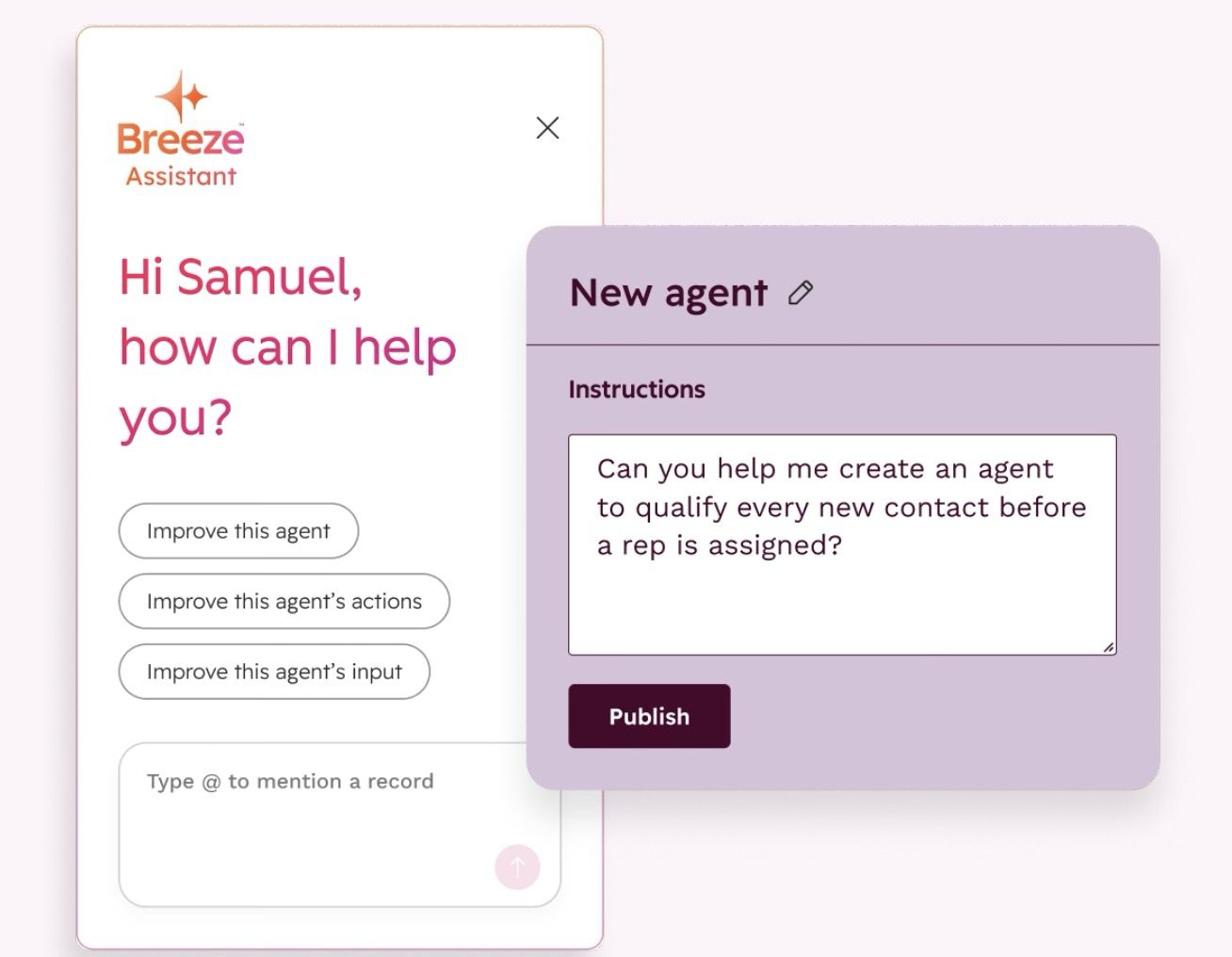
HubSpot breaks instructions into four parts: the agent's role, its goal, its approach and its expected output. Fill in all four.
The common failure is an instruction that describes a topic instead of a job. Compare these two, written as an illustration:
- Vague: "Help sales with account research."
- Specific: "You research one company before a sales rep's first call. Read the company's website and the HubSpot company record. Return three things: what the company sells, one recent change worth mentioning, and the open deals or tickets on the record. If the website doesn't say, write 'not found.' Keep it under 150 words."
The second one tells the agent what to read, what to return, what to do when the source is empty and how long the answer should be. That's what makes output consistent from one run to the next.
Step 2: Give It Knowledge
The Knowledge section has three sources:
- Custom knowledge vaults for detail specific to this agent, like product specs or support guidance
- Default context from Agent Hub, such as your brand kit and ICPs
- Integrations
Default context is shared by every agent, so fix it once in Agent Hub rather than repeating it in every agent's instructions. Vaults are for what only this agent needs.
Step 3: Choose the Actions
Actions are what the agent is allowed to do. Agent Builder splits them into three tabs:
- HubSpot actions
- Default actions: browse the web, read your HubSpot CRM records and write to your HubSpot CRM records
- MCP, which connects external systems through the Model Context Protocol
Start with read actions only. Add "write to your HubSpot CRM records" after you've seen enough runs to trust what the agent would write. An agent that can only read can't damage your data while you're learning how it behaves.
If the agent needs a system outside HubSpot, the MCP tab is where it connects, and that system needs an MCP server.
Step 4: Define the Inputs
Inputs are the runtime data the agent gets each time it runs, such as a CRM object. The account research agent above would take a company record as its input.
One input per run, clearly defined, makes an agent much easier to test than one that tries to figure out what it was handed.
Step 5: Pick the Trigger
HubSpot gives you three ways to run a custom agent:
|
Trigger |
Available on |
Use it when |
|---|---|---|
|
Workflows |
Professional and Enterprise, through the Agent Hub workflow builder |
The agent should run automatically when something happens |
|
Automations |
Starter, through the automation side panel |
You're on Starter and need it to run on an event |
|
CRM cards |
Selected object types |
A person should decide when to run it, from the record they're looking at |
For a first agent, a CRM card is the safest choice. A person clicks it, reads the result and decides what to do with it. You learn a lot more from that than from an agent running unattended in a workflow.
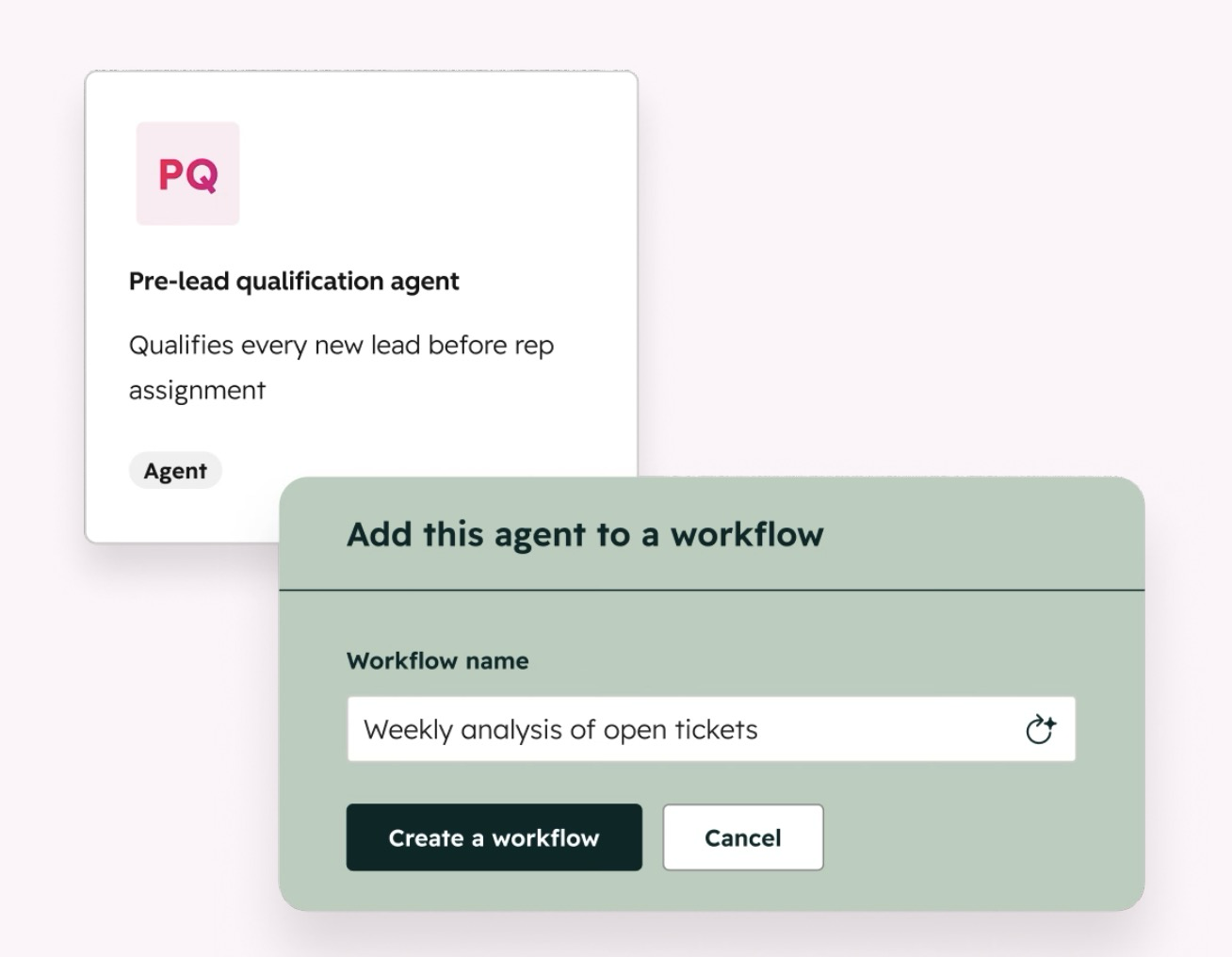
When it does move into a workflow, HubSpot's Run Agent action can return structured outputs, like a number, a date or a choice from a list, that later workflow steps branch on. It's in beta and capped at 500 executions per day.
Step 6: Test It Without Spending Credits
Agent Builder lets you run tests without consuming HubSpot Credits before you publish. Use that freely.
Test on records you know well, including the awkward ones: the company with no website, the contact with three duplicate records, the deal with no notes. A good agent handles the edge cases the way its instructions say to. A bad one makes something up.
Then open the Run history tab and select a run. The right panel shows the estimated credits for that run. HubSpot says these estimates are for information only, but they're the best number you'll have for forecasting before launch.
Step 7: Set Limits and Publish
Custom agents use HubSpot Credits when they think, take actions or generate content, and HubSpot says costs vary by the complexity of the work. Before you publish, set a monthly run limit so the agent can't use more than you've budgeted.
After publishing, you run agents and review their output in the agent inbox. Read it for the first few weeks. That's where you'll find the instruction you forgot to write.
What Not to Build
Not the "one agent that does everything" version. Not the agent that replaces a working workflow because agents are newer. Not the agent with write access on day one.
If a step can be written as a rule, it belongs in a workflow, which doesn't use credits. Build custom agents for the steps that need reading and judgment, and keep each one to a single job. Three small agents with clear jobs are easier to test, cheaper to run and easier to fix than one agent with a long list of responsibilities.
What to Do First
Write the instructions for one agent before you open Agent Builder. Role, goal, approach, expected output, and what to do when the source is empty. If you can't fill in all five in plain sentences, the agent isn't ready to build.
For where custom agents fit next to HubSpot's prebuilt agents, see the full breakdown of HubSpot Agent Hub. If you need an agent to reach a system outside HubSpot, that's HubSpot custom development work.
FAQs