Table of Contents
You pulled a HubSpot report last week. The numbers looked clean. Deals updated, contacts active, pipeline moving.
Then your sales team told you half those deals hadn’t been touched in 60 days.
Your report wasn’t right, but why? The reason comes down to one small, widely misunderstood property that most HubSpot users report on without a second thought.
The Property That Fools Everyone
If you’ve ever used the “updated in last X days” filter in a HubSpot report, you’ve probably assumed it means: show me records with activity or date values that fall within this window.
It doesn’t.
That filter evaluates modification timestamps, meaning the last time any field on that record was touched in the system. Not the date value inside a property. Not when a deal was actually worked. Not when a contact last engaged. Just the last time HubSpot logged a write event to that record.
This is intentional by the platform. But if you don’t know how it works, you’ll keep making decisions on data that doesn’t reflect your reality.
Modification Timestamps vs. Date Values: What’s the Difference?
HubSpot stores two types of data on every record.
Modification timestamps are system-generated. Every time a record is edited in any way, synced from an integration, or touched by an automation, HubSpot updates the “Last Modified Date.” This includes bulk imports, workflow updates, property sync from Salesforce, and even administrative changes. One field update anywhere on the record resets the clock.
Date values are what you actually care about. Close Date. Last Activity Date. Create Date. Last Contacted. These are explicit property values tied to real business events.
The “updated in last X days” filter reads the modification timestamp. It does not read the date value stored in a property unless you explicitly filter on that property.
So if your Salesforce integration pushed a field sync across 500 contacts last Tuesday, those 500 contacts now appear as “updated” even if nothing meaningful changed. Your report looks healthy. Your pipeline isn’t.
What “Updated in Last X Days” Actually Measures
Here’s a practical example. You’re building a deal pipeline report. You filter for deals “updated in the last 30 days” to show only active opportunities.
What you think you’re seeing: deals your reps have actively worked on in the past month.
What you’re actually seeing: deals where any field, on any record, was modified in the last 30 days. That modification could be a rep editing a contact’s phone number. It could be a workflow updating a lifecycle stage. It could be an integration syncing a custom property that your team never looks at.
The deal could be stone cold. But because one field got touched, it passes your filter.
Real-World Examples of Bad Data
The Pipeline That Looked Full
A RevOps team ran a weekly report showing 47 active deals updated in the last 14 days. Leadership was satisfied. But a manual audit showed that 31 of those 47 deals had been flagged by a bulk workflow update that auto-assigned a rep owner when the original owner left the company. The deals themselves had no new activity.
The Lead List That Looked Warm
A marketing team filtered their lead database for contacts updated in the last 7 days to build a re-engagement sequence. The list pulled 800 contacts. Most of them had been updated because an integration pushed new company data from an enrichment tool. The contacts hadn’t done anything. Marketing sent a “we haven’t heard from you” email to contacts who had never actually gone cold.
The Retention Report That Hid Churn Risk
A customer success manager filtered their account list for companies updated in the last 30 days to track health. A CRM migration had just pushed new address data to every account record. Every account showed as recently updated. Three accounts that hadn’t had any real interaction in two months got missed entirely.
In each case, the filter worked exactly as designed. The problem was the assumption behind it.
How to Build Reports That Tell the Truth
The fix isn’t complicated, but it requires being intentional about which date you’re actually asking HubSpot to evaluate.
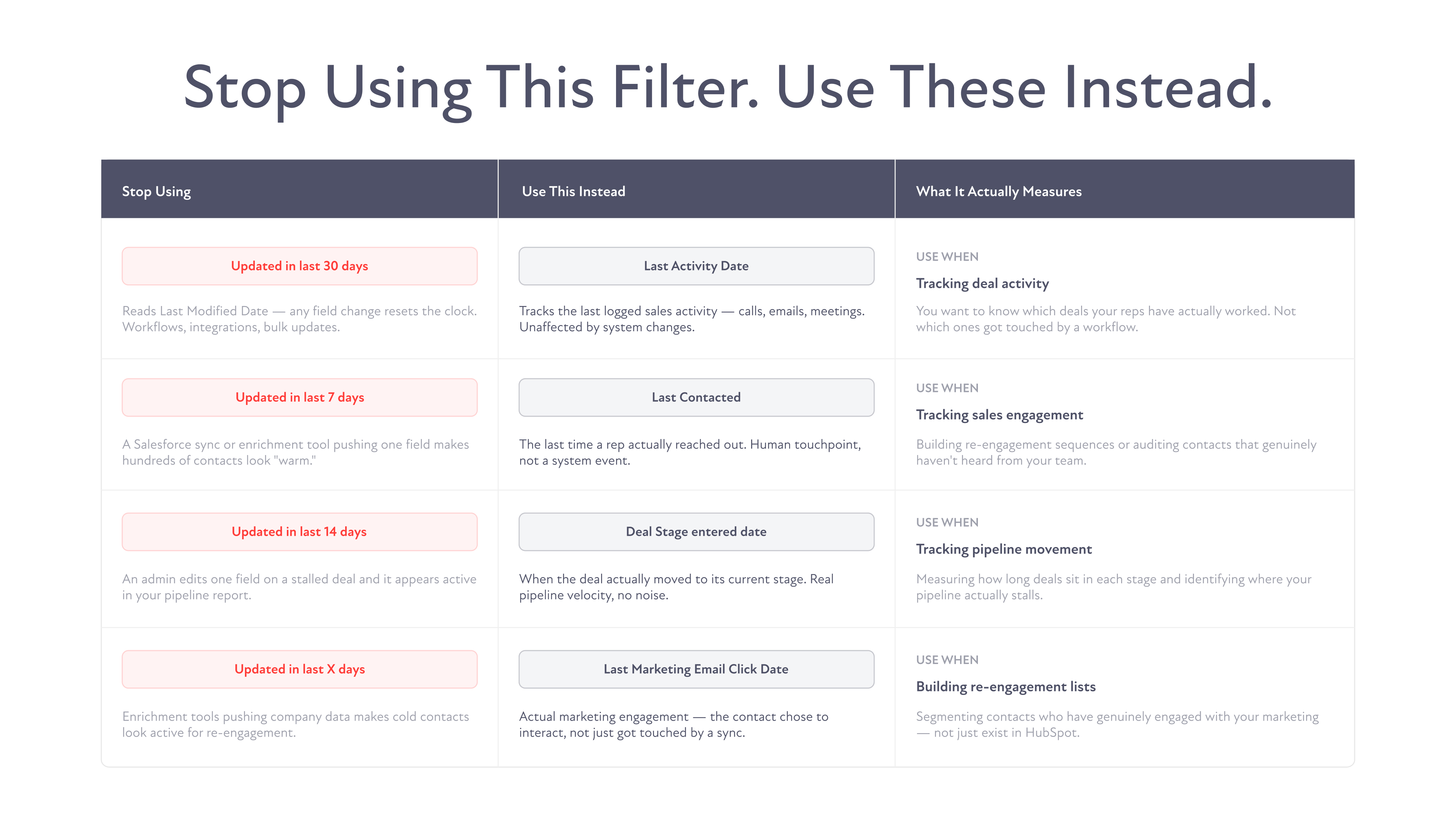
Use explicit date property filters instead of modification-based filters. Instead of “Last Modified Date is less than 30 days ago,” filter on the property that actually reflects the activity you care about:
- For deal activity: filter on “Last Activity Date”
- For sales engagement: filter on “Last Contacted”
- For pipeline movement: filter on “Close Date” or “Deal Stage entered” date
- For marketing engagement: filter on “Last Marketing Email Click Date” or “Recent Conversion Date”
Build a “True Inactivity” view for your pipeline. Create a deal report filtered by “Last Activity Date is more than 21 days ago AND Deal Stage is not Closed Won AND Deal Stage is not Closed Lost.” This gives you the real stalled deals without any noise from system modifications.
Audit your modification triggers. If you have Salesforce syncing to HubSpot, workflows running on bulk updates, or data enrichment tools pushing fields, those will constantly reset your modification timestamps. Map what’s touching your records and build filters accordingly.
Document your reporting logic. Every HubSpot report your team relies on should have a description that explains which date properties are being evaluated and why. One person’s “active leads” shouldn’t mean something different to the next person.
Test your filters with known data. Before you trust a new report, run it against a handful of records you know intimately. If the results don’t match what you’d expect, the logic is off.
The Bigger Issue
Bad filters aren’t just a nuisance. They erode confidence in your CRM over time. When reps don’t trust the data, they stop using the system. When leadership gets burned by inaccurate pipeline reports, they stop making decisions based on data.
HubSpot is a powerful platform. But it’s only as good as the logic you build inside it. Getting your filters right is foundational to everything else.
If your reports aren’t reflecting what’s actually happening in your business, that’s a system design problem, not a luck problem. And system design problems have solutions.
FAQs